
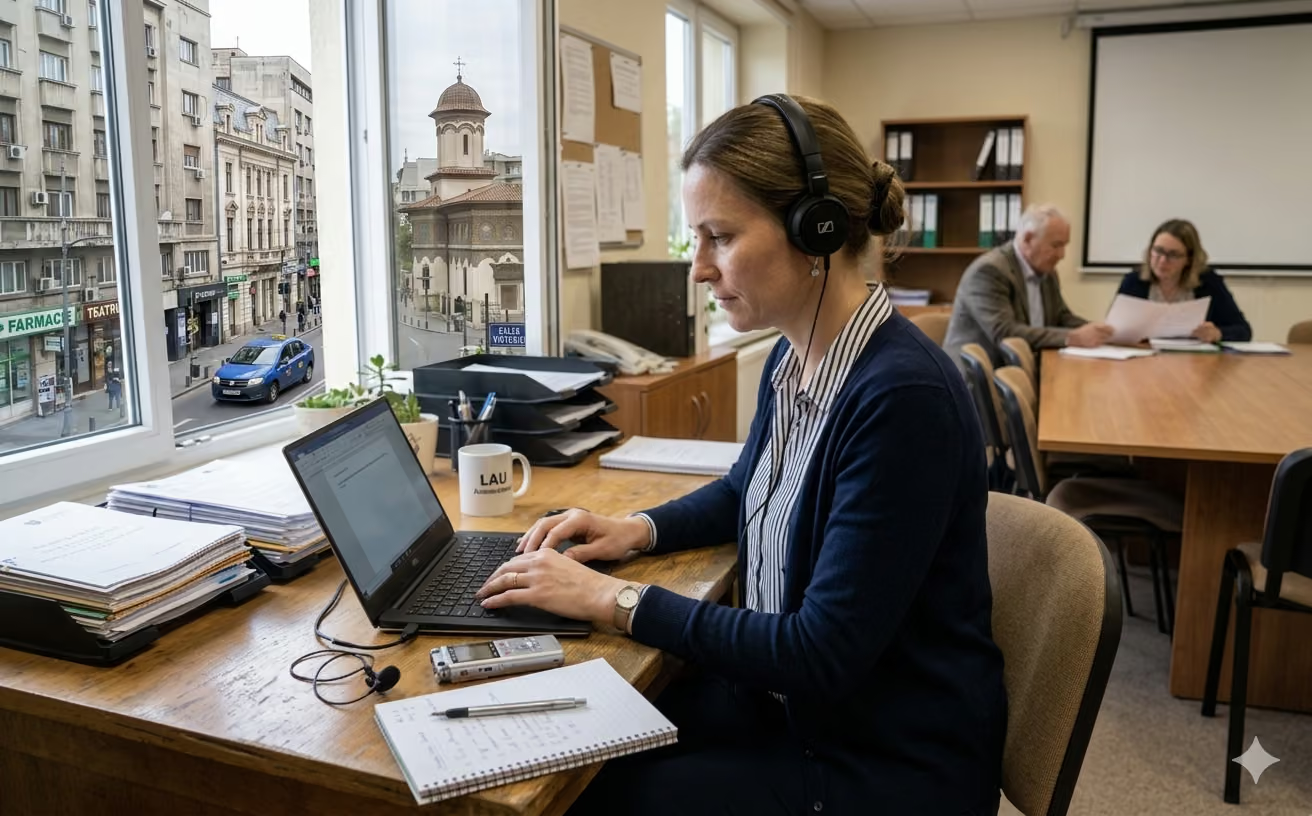
You uploaded an audio file, waited for the transcription, and the result looks like it was written by someone who only caught half the conversation. Missing words, cut-off sentences, misspelled names, and technical terms turned into meaningless phrases.
More often than not, the problem isn't the transcription platform itself - it's the quality of the recording. A clean audio file, free of background noise and with easily identifiable speakers, makes the difference between a frustrating text and one you can edit in minutes.
In this guide, you will find practical tactics to significantly improve transcription accuracy. We have broken them down into four key areas: audio equipment, recording environment, speaking technique, and software configuration.
💡 Short on time? Start with the top four: use an external microphone, position it correctly, record in a quiet room, and add a custom vocabulary for key terms.
Why Audio Quality Matters in Transcription Software
An AI-powered transcription tool can only process the information it receives. If the voice is drowned out by noise, if participants talk over each other, or if the microphone is too far away, the algorithm has fewer clear clues to recognize words correctly.
Accuracy depends just as much on how well the recording is prepared as it does on the software itself. Before switching your transcription provider, it is always worth checking your recording workflow.
1. Audio Equipment
Use an External Microphone, Not the Built-In One
Your laptop or phone microphone is fine for quick calls, but it is a poor choice for long recordings, interviews, or meetings.
An external microphone captures the voice much more clearly and rejects unwanted ambient noise. You don't need a high-end studio setup: a basic USB desk microphone (such as the Blue Yeti or Audio-Technica series), an affordable lavalier, or a dynamic microphone will provide a massive upgrade.
Keep the Microphone at the Right Distance
Placement matters just as much as the microphone quality. For most desk microphones, keeping a distance of 15-20 cm (6-8 inches) from your mouth strikes the perfect balance between clarity and comfort.
- Too close: It will capture heavy breathing and plosive sounds (like "p", "b", or "t").
- Too far: Your voice becomes thin, room echo increases, and consonants fade away.
- For lavaliers: Clip the microphone in the chest area, about 20 cm from your chin. Avoid collars, scarves, or clothing made of rigid materials that produce noise when moving.
Record at High Audio Settings
Whenever possible, select better audio settings right at the source. A safe standard is 44.1 kHz or 48 kHz at 16 or 24 bits. You can easily adjust these in free recording tools like Audacity or OBS Studio.
The more raw data the audio file retains, the better the transcription software can decipher the speech.
2. Recording Environment
Eliminate Background Noise Before You Start
Before hitting record, sit quietly and listen to the room for a few seconds. Can you hear a laptop fan? The AC unit? Traffic outside? A hum from a fridge or printer?
A constant background hum drastically lowers AI accuracy. Close windows, turn off noisy appliances, and let others know you are recording. Preventing noise is infinitely easier than trying to filter it out later using noise reduction software.
Use Headphones in Online Meetings
For meetings on Zoom, Teams, or Google Meet, headphones are non-negotiable. If participants use laptop speakers, the audio from other speakers bleeds back into their microphone, creating a subtle echo (feedback loop). This loop confuses the speaker identification (diarization) engine in transcription software.
3. Speaking Technique
Speak Slightly Slower Than Usual
Fast speech frequently leads to slurred words, lost sentence endings, and blurred phrasing. A slightly slower, well-articulated rhythm works wonders for AI tools. You don't need to sound robotic; just imagine you are explaining something important to a colleague taking notes in real time.
State Speaker Names at the Beginning
In multi-person meetings, it is an excellent practice for everyone to briefly introduce themselves when they first speak: "This is Andrew from the technical team." or "This is Mary from marketing." This helps the software map the vocal blueprint to the correct name throughout the rest of the file.
Leave Short Pauses Between Turns
When two people talk at the same time, transcription software cannot cleanly separate the voices. A simple rule of thumb is to pause for 1-2 seconds before responding. Besides giving the meeting a more professional tone, it prevents destructive audio overlapping.
4. Configuring the Transcription Tool
Add a Custom Vocabulary
Most errors happen with proper nouns, acronyms, product brands, or industry jargon (medical, legal, financial). If your transcription platform includes a "Custom Vocabulary" or "Glossary" feature, upload a list containing:
- Relevant names of people and companies.
- Technical terms or internal acronyms.
- Product names and geographic locations.
Upload the Right File Format
Uncompressed formats like WAV or FLAC are ideal for accuracy because they preserve all vocal frequencies. If you must use MP3 or M4A, ensure they are exported at a high bitrate (at least 320 kbps). Avoid files sent via messaging apps like WhatsApp, as they compress the audio aggressively to save data.
How to Measure If Your Transcript Improved
The simplest test is comparative:
- Take an older recording made under normal conditions and transcribe it.
- Make a new recording of similar length, applying the tactics above.
- Compare the final results and track: the number of wrong words, proper noun recognition, and most importantly, the time you saved during manual editing.
Conclusion
An excellent transcription with the help of artificial intelligence begins long before you upload the file to a platform. It starts with your choice of microphone, room isolation, and how you choose to speak. Software matters, but it cannot fully compensate for a poor recording. Apply these rules to your next recording and see the difference from the very first minutes.
If you want to understand when automation is enough and when a human review still makes sense, read the guide on automated transcription vs. manual transcription.
Frequently Asked Questions (FAQ)
Which tactic has the highest impact? By far, using an external microphone instead of the built-in one on your laptop or phone. It provides the algorithm with a clean signal that is significantly easier to process.
How much does it cost to improve recording quality? The investment can be minimal. A budget USB microphone or lavalier is inexpensive. The rest of the tactics (pausing, correct distance, room silence) are completely free and rely only on habits.
How do I check if my volume levels are correct? In apps like Audacity or OBS, you can monitor the volume meter (VU meter) in real time. Your voice should sit in the green/yellow zone. If it hits the red zone (0 dB), the audio will suffer from clipping (distortion), which will alter transcription quality.
Do these tactics work for any language? Yes. Voice recognition models (such as OpenAI Whisper or other modern systems) process acoustics the same way, whether the recording is in English, Spanish, French, or any other language.
Try VorbeAI on your own recording
Upload your audio or video and get an accurate transcript with speaker labels and time codes, ready to export. EU-hosted, GDPR-compliant.
Keep reading
More articles you might find helpful.
How to Choose Automated Transcription Software? Essential Criteria for a Smart Choice
Discover the essential criteria for choosing the best automated transcription app. Details about real-world accuracy, GDPR, security, and workflow fit.
Transcription Software vs. Manual Transcription: How to Make the Right Choice
Discover when automated transcription software is efficient and when manual transcription services are still the safer choice. A practical guide to cost, accuracy, and review workflows.

How Many Hours Do Legal Professionals Really Lose to Manual Transcription?
Studies show lawyers lose 2 to 5 hours daily to administrative work. See how AI transcription helps recover that valuable time.